NightRead
A softer web. A quieter night.
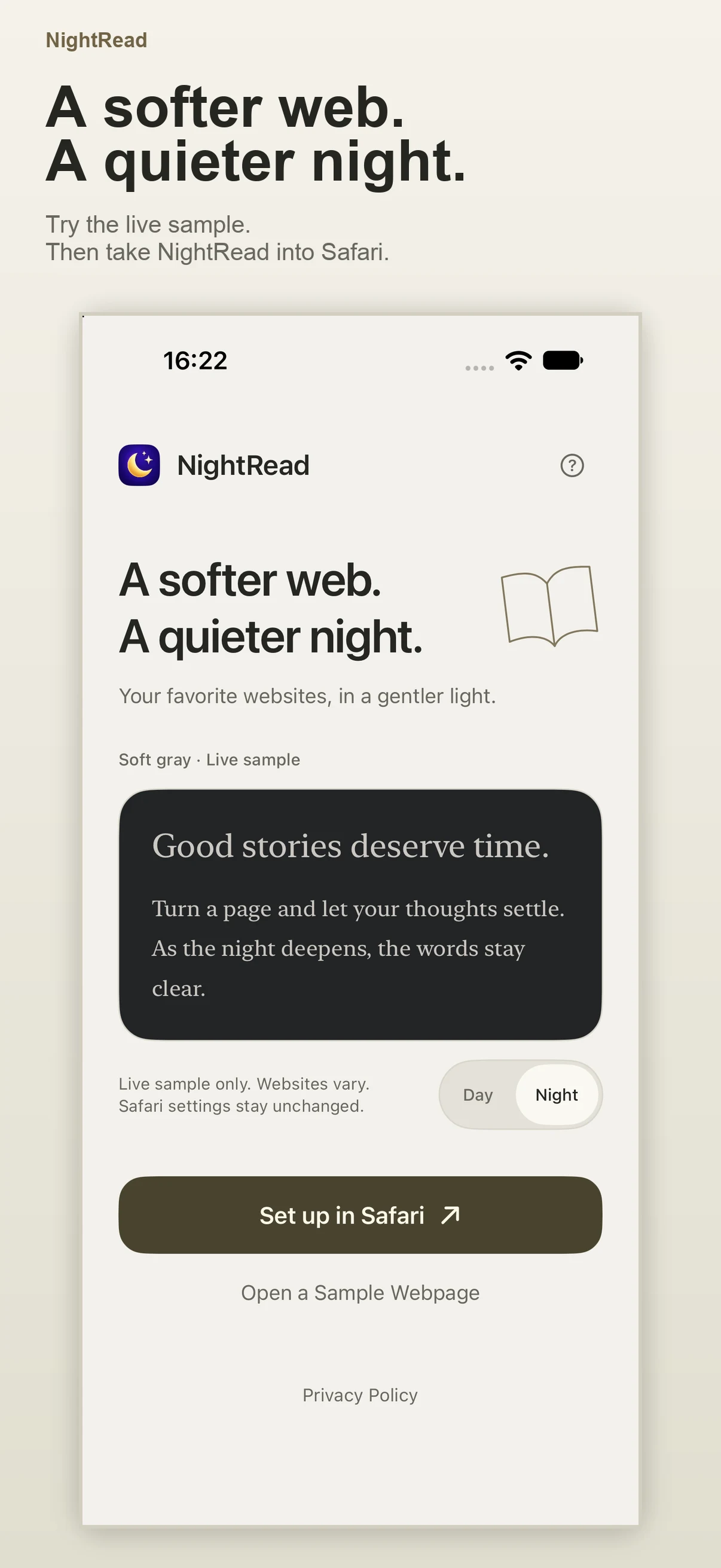
NightRead 2.0 brings a darker reading appearance to Safari on iPhone and iPad. Choose a palette, follow your system appearance, and keep individual websites just the way you like them.
View NightRead on the App Store · See screenshots
Price and availability
Download NightRead from the App Store where available. Availability depends on your Apple Account's country or region; check your local App Store listing.
One-time purchase. U.S. base price: US$0.99. No subscription, in-app purchases, or ads. Apple provides comparable local prices for other storefronts and may adjust them for taxes or exchange rates. Check the price shown in your App Store before purchasing.
A look at NightRead
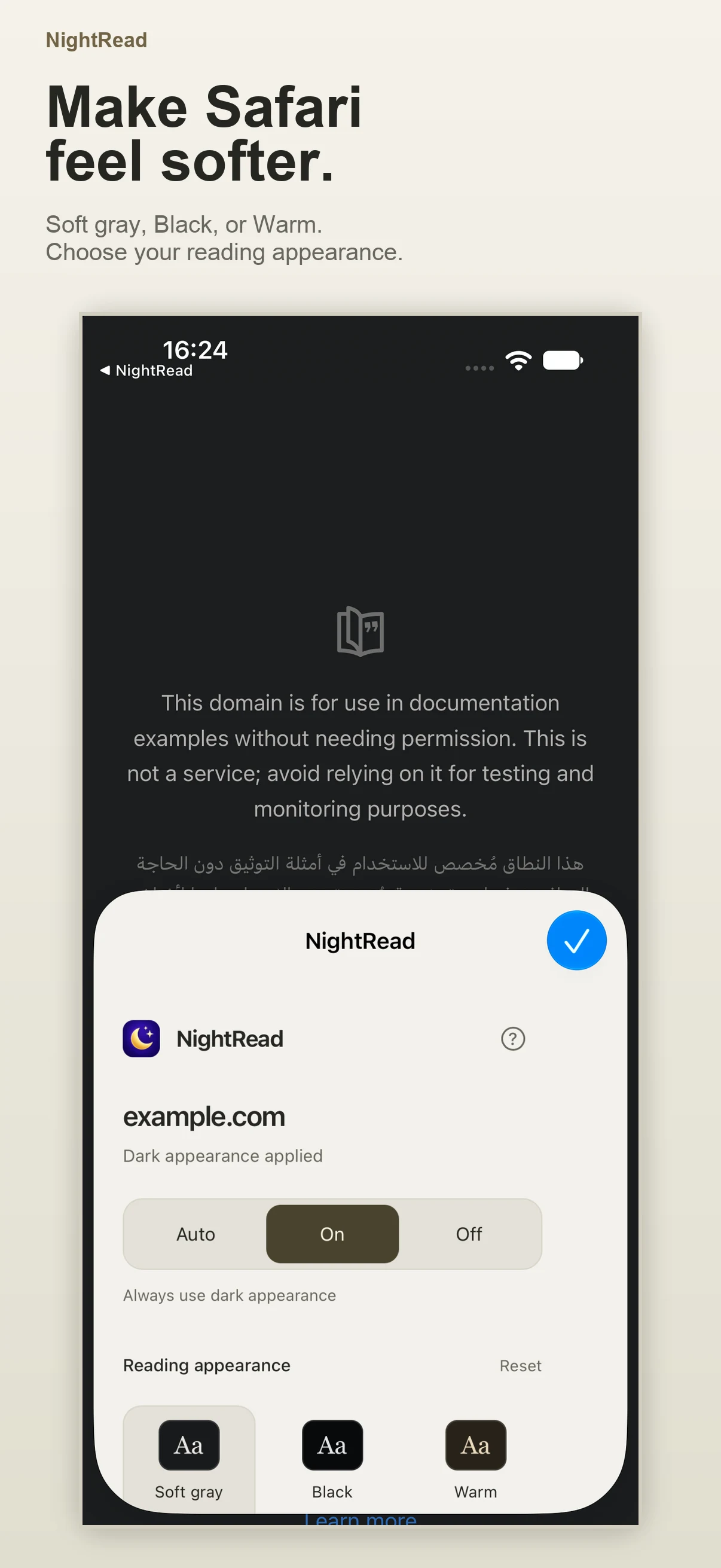
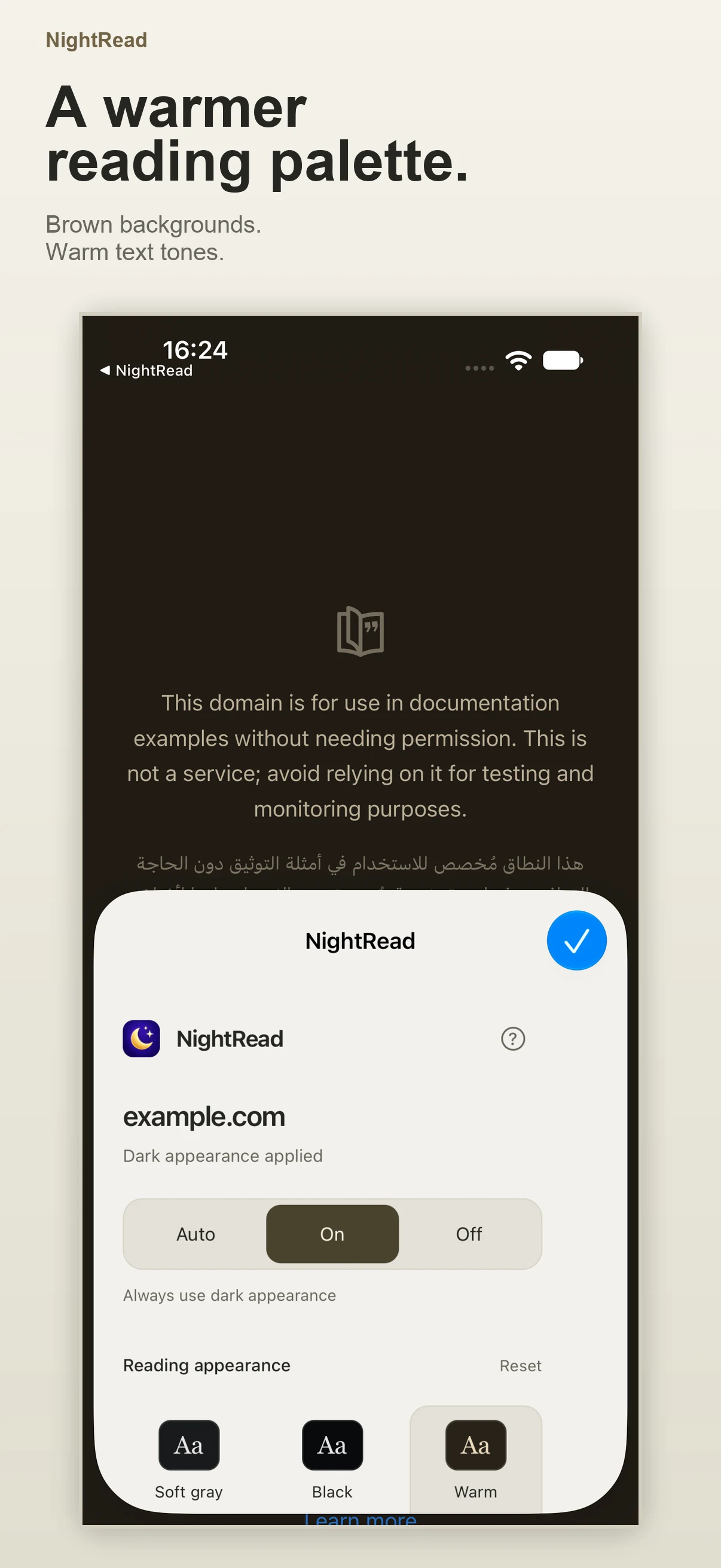
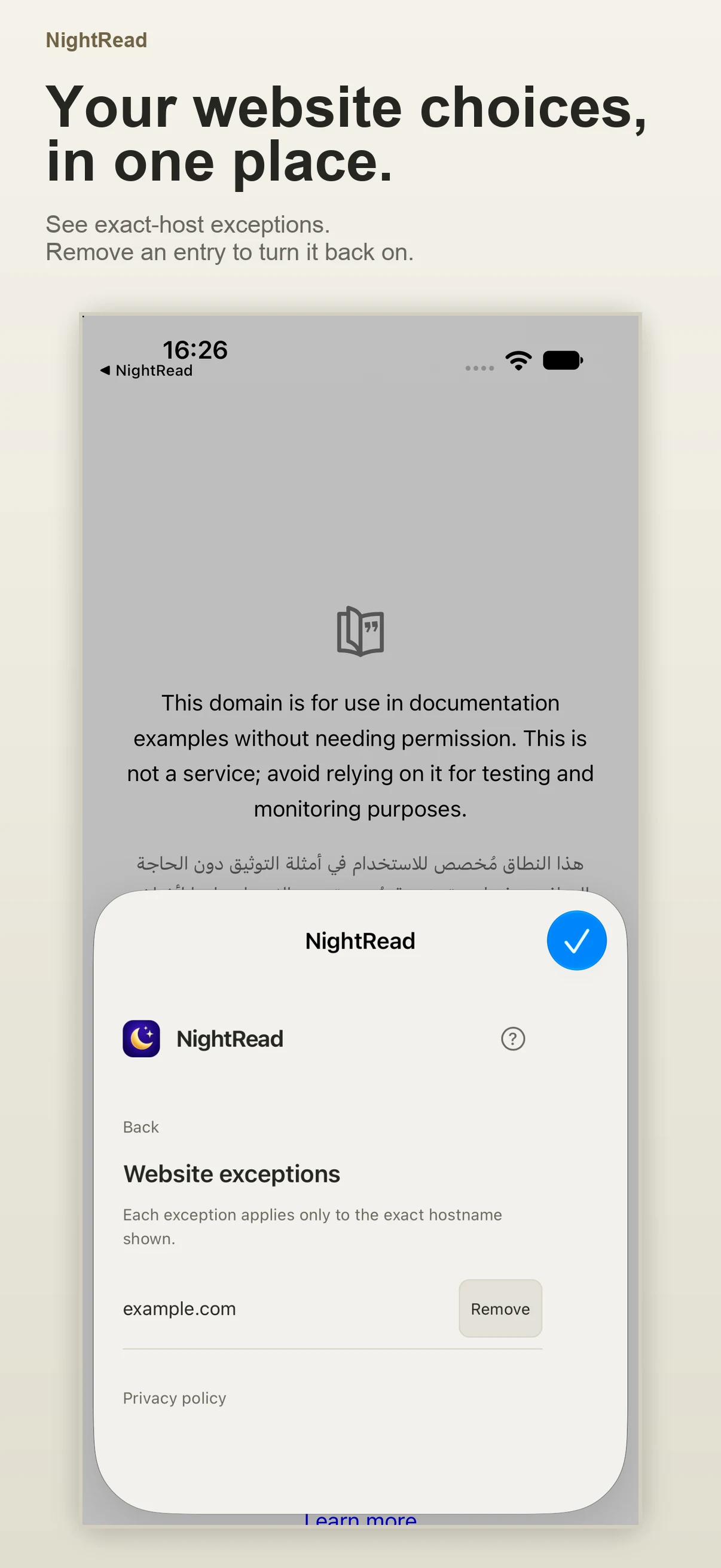
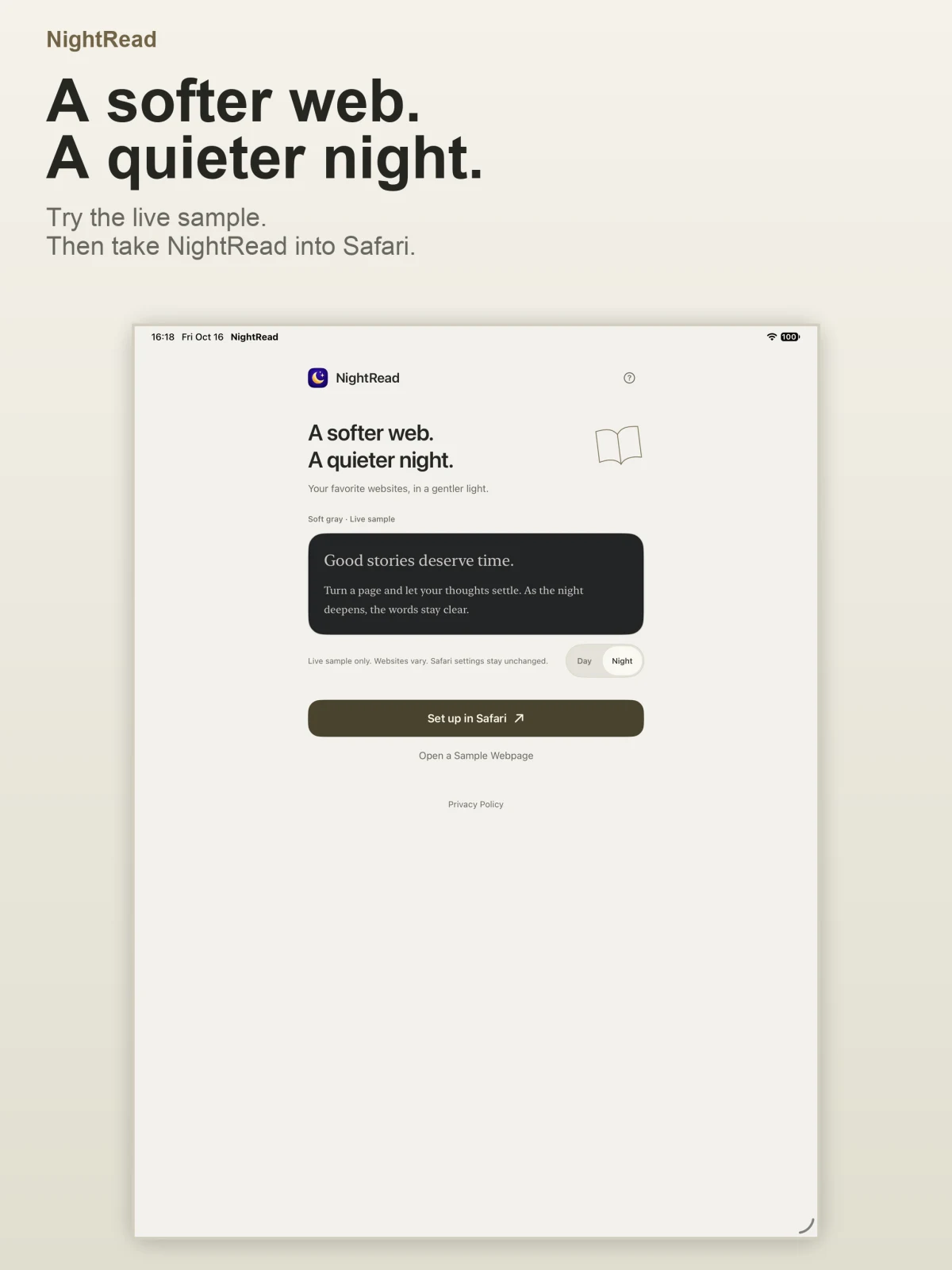
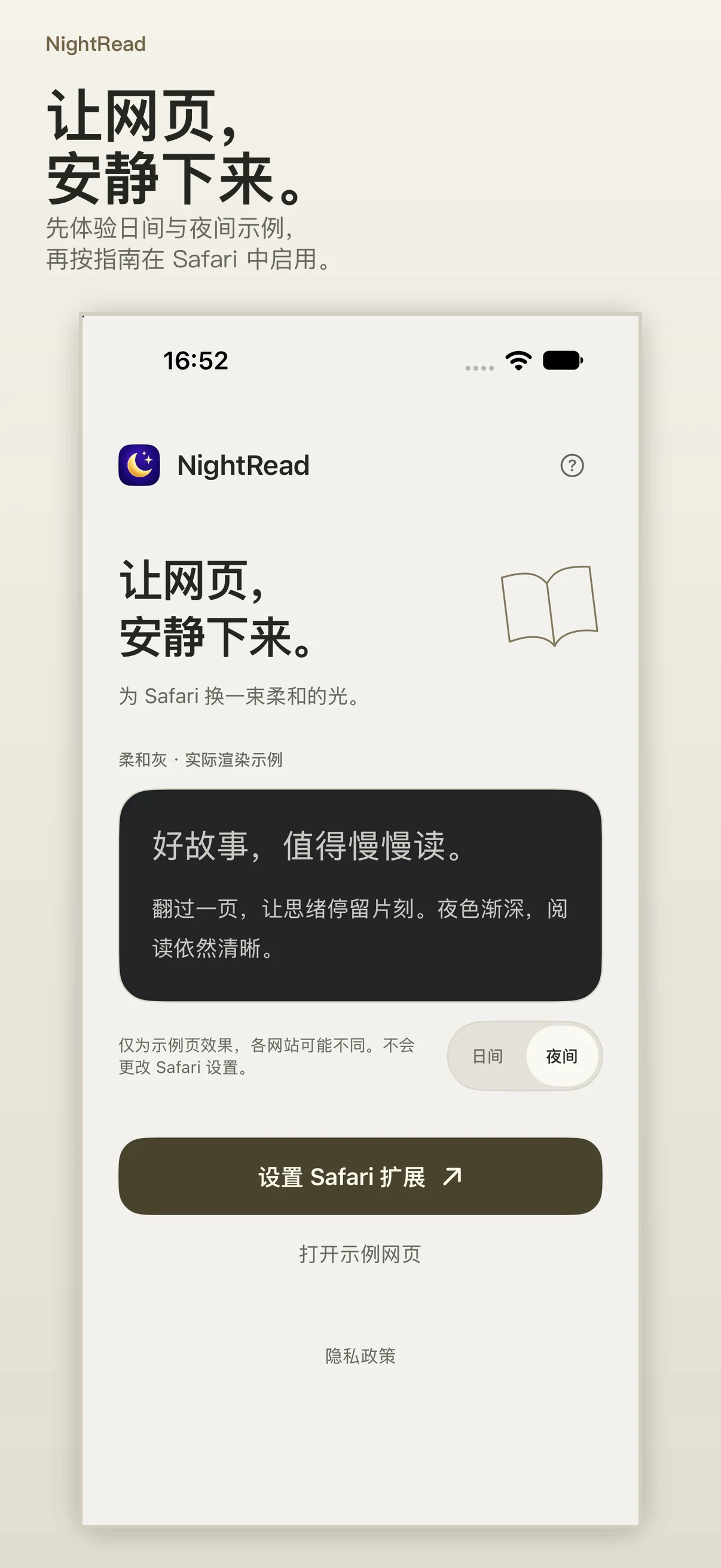
Explore the app’s local sample, Safari reading appearances, and website exceptions. Select a screenshot to see it at full size.
See NightRead on iPad
查看简体中文截图
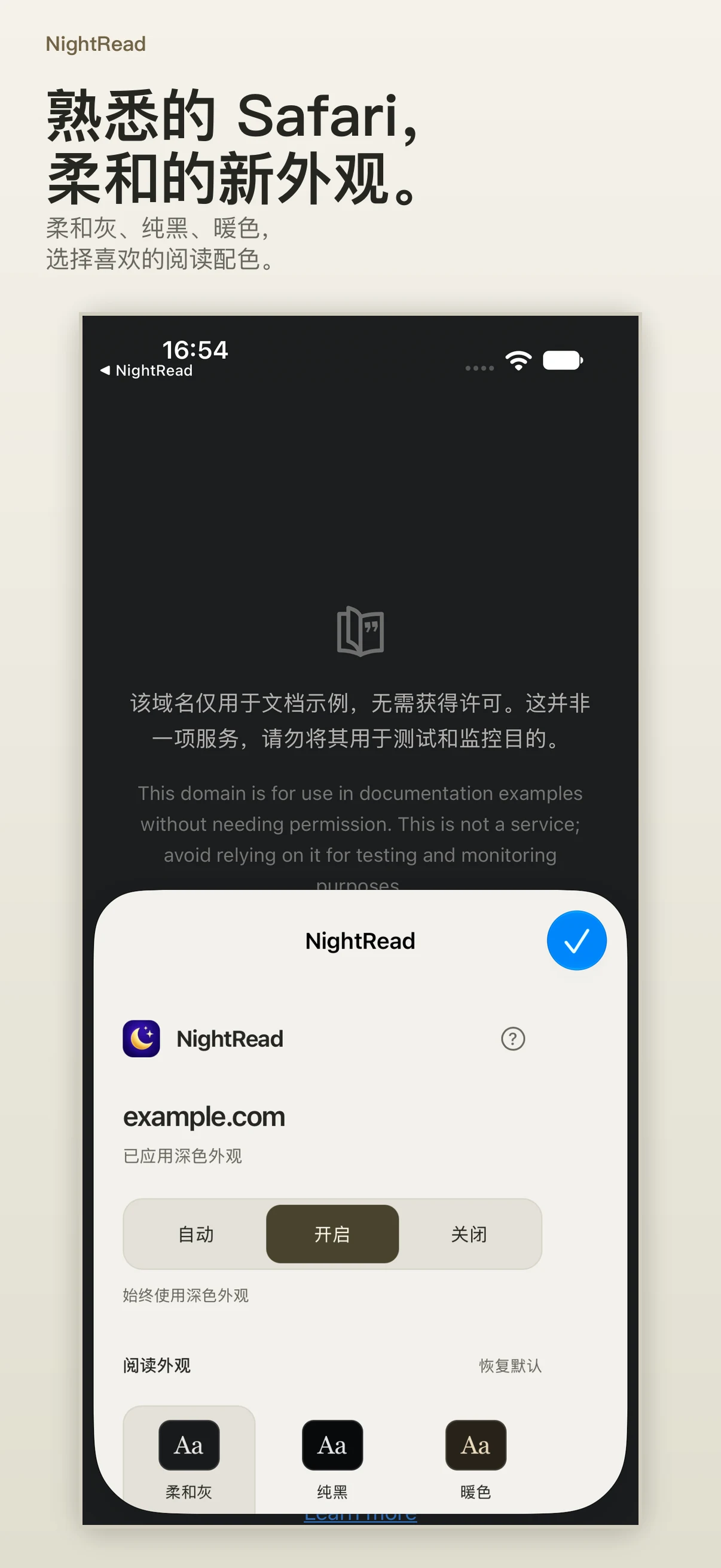
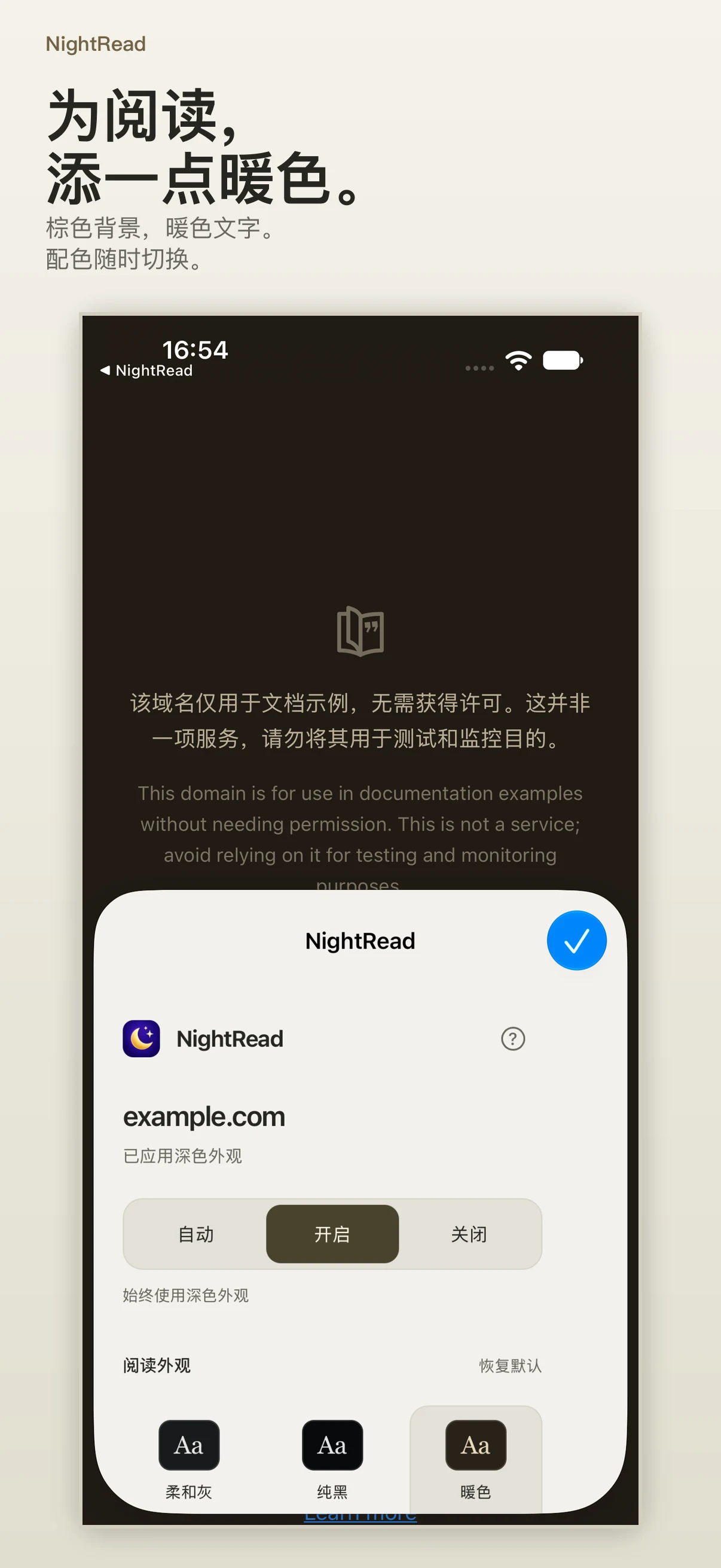
Choose your reading appearance
- Soft gray: a muted dark palette.
- Black: a deeper background.
- Warm: brown backgrounds and warm text tones.
Switch palettes from NightRead's Safari popup and check the result on the webpage itself.
Decide when to use it
| Mode | What it does |
|---|---|
| On | Apply NightRead's dark appearance to permitted webpages. |
| Auto | Follow your device's system appearance: dark when the system is dark, unchanged when it is light. |
| Off | Restore the website's own appearance. |
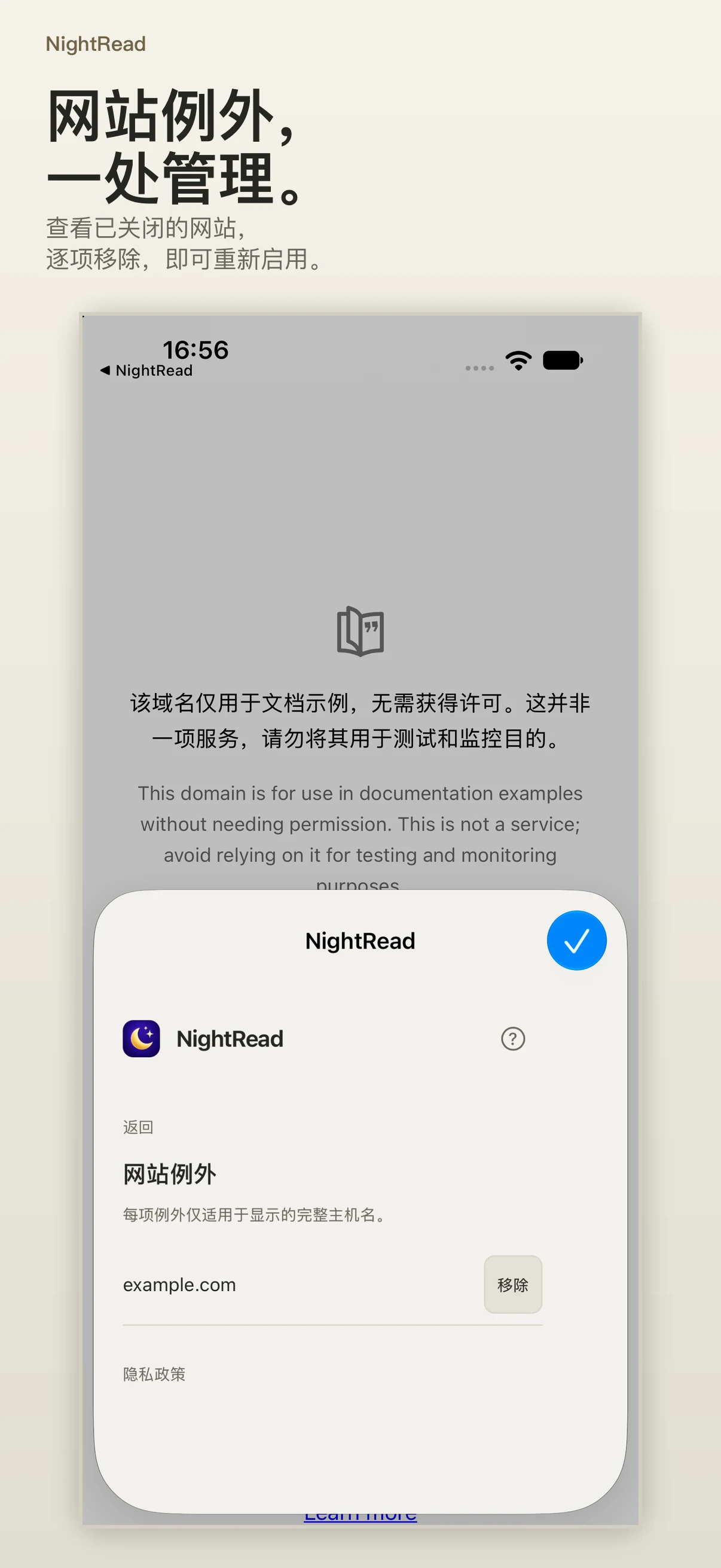
Prefer a website in its original colors? Turn on Disable on this website. Manage saved hostnames in Website exceptions, and remove an entry to enable NightRead there again. Each exception applies to the exact hostname shown, so example.com and www.example.com are separate choices.
The popup reports the current page's result separately from your saved mode. Some websites already provide a dark theme and may be left unchanged. Results vary by website; choose Off or disable NightRead for a website if its layout or colors do not look right.
Try the sample, then set up Safari
Open the NightRead app to try the local Day/Night sample and read the setup guide. The sample demonstrates Soft gray; it does not change Safari preferences or confirm that the extension is enabled.
- In Settings, open Apps → Safari → Extensions → NightRead. On iOS/iPadOS 17, open Safari → Extensions → NightRead directly.
- Turn on Allow Extension and allow access to the websites you choose. All Websites access is optional; Private Browsing has a separate permission.
- Open a light webpage in Safari, then open the Page Menu beside the address bar and select NightRead. Look under Extensions or More if needed.
- Choose On, Auto, or Off, and select your reading appearance. Reload the webpage if needed.
Requirements and privacy
NightRead 2.0 requires iOS or iPadOS 17.0 or later and Safari on iPhone or iPad. No account is required. Preferences and website exceptions are stored locally on your device; NightRead has no analytics or advertising service.